How to Create Accessible PDFs: A Complete Step-by-Step Guide
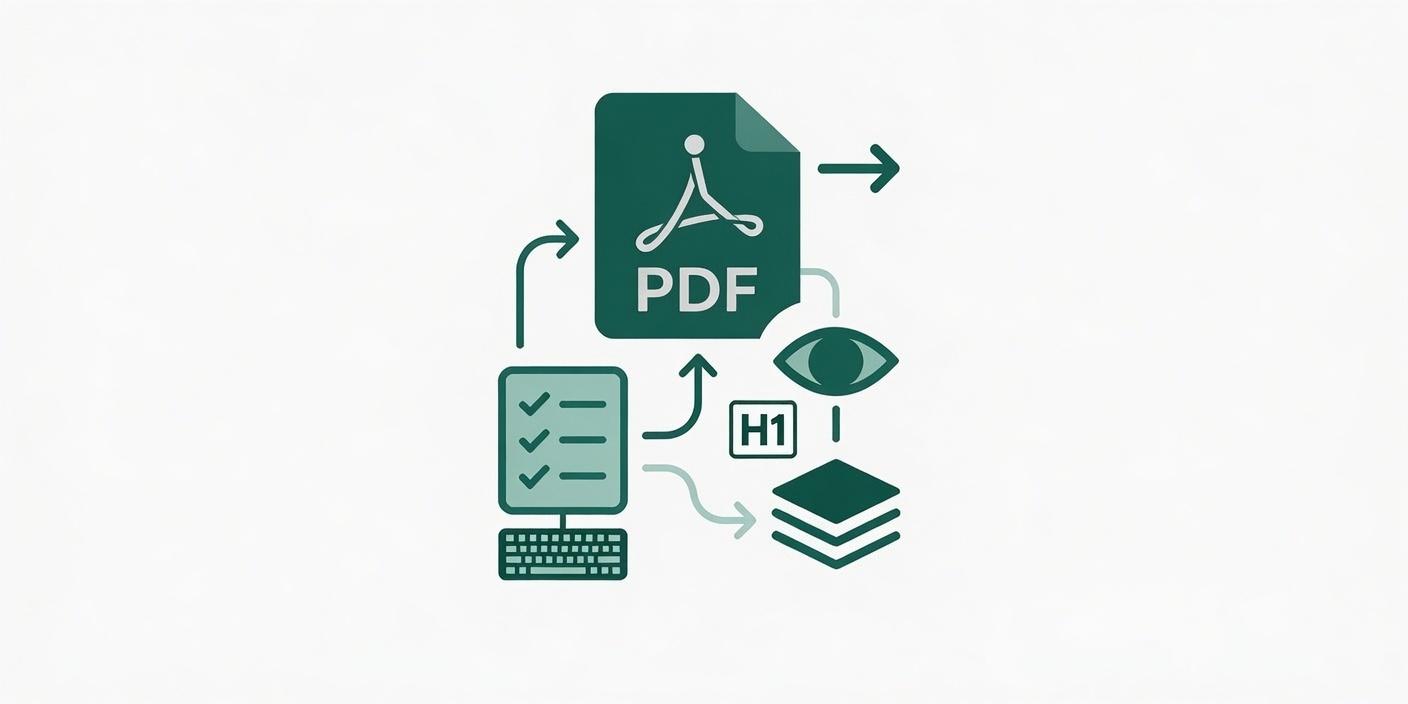
Digital accessibility doesn’t stop at your website’s HTML. For many agencies, municipalities, and businesses, a significant portion of public-facing information lives inside PDF documents. If those PDFs aren’t structured correctly, they become digital brick walls for users relying on screen readers and other assistive technologies.
Creating an accessible PDF doesn’t have to be a daunting task. By building accessibility into your workflow from the very beginning, you can consistently produce compliant, user-friendly documents that meet WCAG and ADA accessibility standards.
Here is your complete step-by-step guide to creating accessible PDFs.
Download our Guide to Accessible PDFs
Step 1: Start with an Accessible Source Document
The golden rule of PDF accessibility is simple: fix it in the source file. Whether you’re using Microsoft Word, Google Docs, or Adobe InDesign, make sure your original document is built with accessibility in mind before you ever hit “Export.”
Step 2: Use a Logical Heading Hierarchy
Screen reader users often skim a document by jumping from heading to heading.
- Use Heading 1 (
H1) for the main title. - Use Heading 2 (
H2) for major sections. - Use Heading 3 (
H3) for subsections.
Crucial Note: Never skip heading levels (for example, jumping from an H2 straight to an H4) just to achieve a specific visual style. Use your document’s styling panel to change appearance instead.
Step 3: Add Descriptive Alt Text to Images
Any visual element that conveys information needs alternative text (alt text).
- Keep it concise but descriptive.
- If an image is purely decorative (like a background shape or a dividing line), mark it as “decorative” or “artifact” so screen readers know to skip it.
Step 4: Ensure High Color Contrast and Readable Fonts
Text must be easy to read for individuals with low vision or color blindness.
- Maintain a contrast ratio of at least 4.5:1 for standard text.
- Avoid using color as the only way to convey meaning (for example, “required fields are in red”).
- Stick to clean, readable sans-serif fonts like Arial, Calibri, or Helvetica.
Step 5: Design Clear, Accessible Tables
Tables should only be used to present data, not for visual page layouts.
- Clearly define the header row.
- Avoid merged or split cells, since they confuse the reading order for screen readers.
- Fill out the table properties to include a brief summary or caption where appropriate.
Step 6: Set the Document Title and Language
For a PDF to be accessible, assistive software needs to know what language it’s reading and what the file is called.
- In your file settings, explicitly set the document language (for example, English).
- Set the document title in the file metadata so it displays in the browser tab instead of a messy file name like
final_draft_v3_compressed.pdf.
Step 7: Export to PDF with Tags Enabled
When you save or export your document, make sure you select the option to preserve document structure, such as “Enable Accessibility and Reflow with Adobe PDF Tags.” Tags are the hidden backbone of a PDF that tell assistive tools exactly what order to read the content in.
Step 8: Run a Final Accessibility Check
Before publishing, open your document in Adobe Acrobat Pro and run the built-in accessibility checker. This tool catches lingering issues, such as incorrect reading order or missing interactive form labels, so you can fix them before the document goes live.
Conclusion
Making your PDFs accessible isn’t just about compliance or avoiding legal risk. It’s about ensuring every member of your audience has equal access to your information. By building these eight steps into your standard content creation workflow, accessibility will quickly become second nature.
Need help auditing your existing PDF library or building an accessible document workflow from scratch? A11YPros specializes in WCAG and ADA accessibility consulting, including PDF remediation, for agencies, municipalities, and businesses. Get in touch to learn more.
Achieve Digital Accessibility Compliance
Explore our manual WCAG 2.1/2.2 AA auditing, website remediation, PDF compliance, and VPAT® documentation services.